.png) Get Started
Get Started
A lot of teams search for how to set up a Discord bot when the underlying problem is already happening in the server.
Questions are piling up in public channels. Moderators are answering the same issue repeatedly. Staff are opening ad hoc private threads for sensitive cases. Nobody is fully sure what the bot should be allowed to read, where it should reply, or who owns it after launch. That's why support bots fail so often. The install is easy enough. The operating model usually isn't.
For community support, a Discord bot is not just a utility. It's part of the support system. Teams that treat it like a quick add-on often end up with a bot that can post messages but can't handle routing, privacy boundaries, or staff handoff cleanly. Teams that treat it like infrastructure make better decisions early and avoid messy rewrites later.
Managing support in Discord gets chaotic fast. A small server can survive with manual replies and a few saved responses. A growing server can't. Once support starts happening across public help channels, private conversations, and moderator escalations, the first question isn't “how to add a bot.” It's which kind of bot setup the team can realistically maintain.
A useful starting split is simple. There are custom code bots and managed no-code bots. Both can work. The wrong one usually becomes obvious only after launch, when the team realizes it has built something nobody has time to operate.
A coded bot fits teams that need precise behavior, custom workflows, and direct control over logic. That path makes sense when someone on the team can own the bot beyond day one. Not just write the first version, but also handle permission changes, deployment issues, and Discord API updates.
A no-code setup fits teams that need support automation without adding another internal tool to maintain. That's often the better choice for community, support, and success teams that need fast deployment and dependable handoff rather than custom engineering.
Practical rule: If the team can't name who will maintain the bot next month, it shouldn't start with a custom build.
That matters because setup itself isn't the hard part anymore. The harder part is sustaining a bot that can safely handle support volume across public and private channels, a gap many how-to guides miss, as noted in this Discord bot setup guide focused on external service deployment.
Discord's setup model starts in the Developer Portal because bots aren't normal standalone accounts. They're app-based integrations. That design is why the process revolves around an application, a bot user, scopes, permissions, and server authorization instead of a standard username and password flow.
In practice, that means the first move is always the same:
Before anything gets deployed, the team should lock down a few decisions.
A rushed setup usually creates trouble later. The common version is a bot that starts in a test server, gets broad access for convenience, and then eventually becomes a production dependency.
That's avoidable. The clean approach is to register the bot properly first, decide whether the team is building or buying, and treat support architecture as part of setup from the start.
The biggest mistake in Discord bot setup is giving the bot too much access because it's faster.
For a support server, that shortcut creates risk immediately. A bot does not need broad visibility into every category, every private room, and every moderation control just to answer product questions or open ticket threads. Yet many setups begin with oversized permissions because they remove friction during testing.
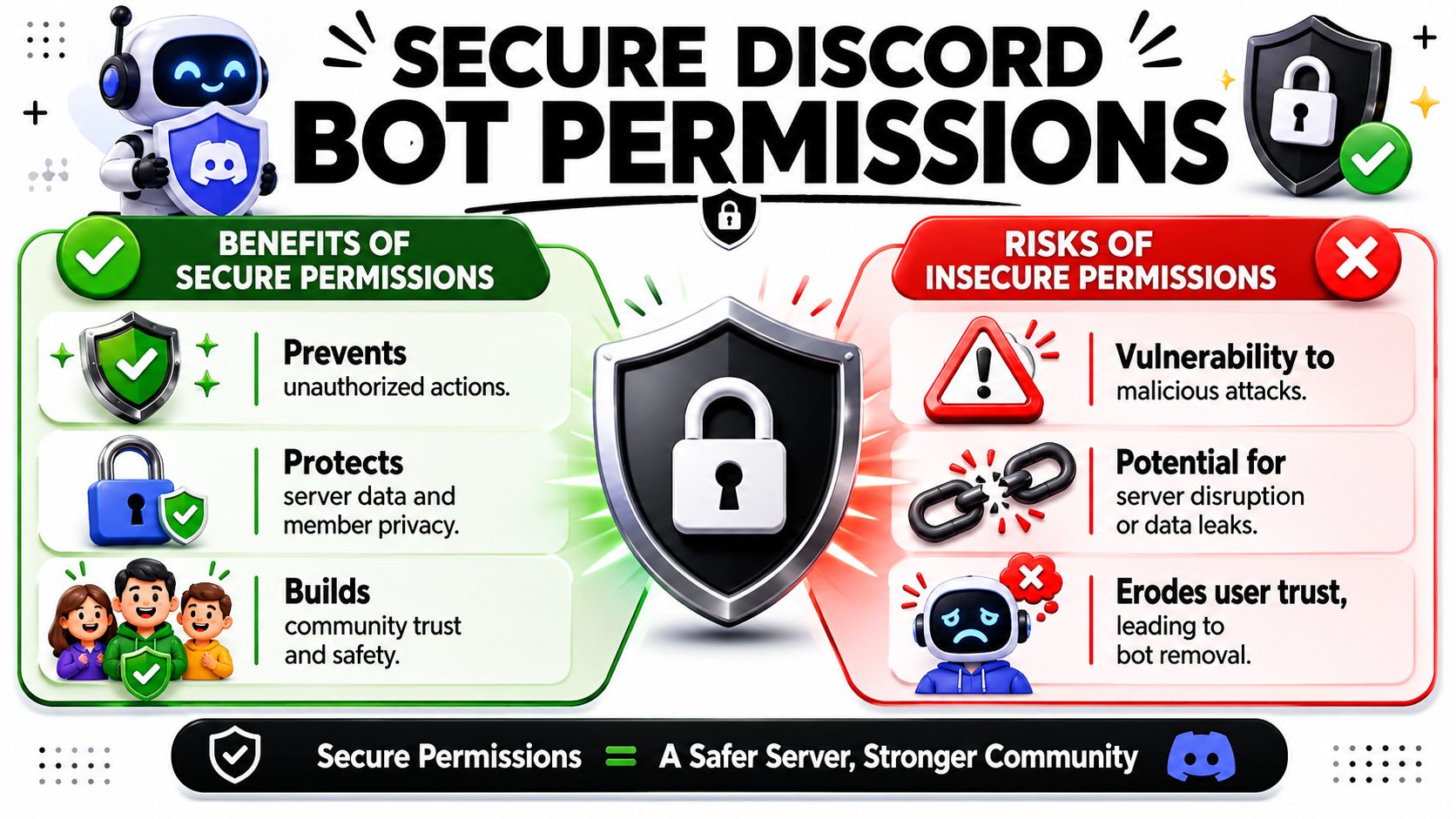
Production communities need a more deliberate model. Public help channels, private tickets, and admin-only areas shouldn't share the same bot access pattern. That gap is often overlooked in basic tutorials, but it matters because support teams are really asking how to add a bot without overexposing message history, member data, or moderation controls, as outlined in OpenClaw's Discord channel guidance.
A safer bot starts with least privilege. Give the bot only the permissions it needs for the use case it serves now. Add more later if the workflow proves necessary.
For support communities, it helps to design permissions around channel function rather than around the bot's perceived importance.
In public support channels, a bot often needs to:
It usually does not need access to unrelated private categories, broad moderation powers, or message management everywhere.
Private support spaces need tighter handling.
Admin channels should stay off-limits unless there is a specific operational reason for the bot to act there. A support bot rarely needs access to leadership planning, moderator investigations, or internal incident review rooms.
A bot with unnecessary access isn't “future-proofed.” It's overexposed.
A lot of teams still invite bots with broad permissions because it makes troubleshooting easier. For support, that's usually the wrong trade-off. It may speed up installation, but it weakens trust and creates a larger blast radius if the configuration is wrong.
A better pattern looks like this:
AreaRecommended approachPublic supportAllow reading and replying only where help happensTicket categoryGrant targeted access for thread or channel handlingStaff escalationPermit only if the bot actively routes or logs cases thereModerator and admin zonesDeny by default
For teams that need a clearer model for categories, roles, and overrides, this guide to Discord permissions by categories, channels, and roles is useful background.
Before the bot goes live, staff should test it as if they were a regular member, a support agent, and an admin.
Check these questions:
If those answers aren't clear, setup isn't finished yet. For community support, permissions are not a final checkbox. They are the architecture.
Once the Discord application exists and the permission model is clear, the next decision is execution. At this stage, teams either build a useful support workflow or create a bot-shaped maintenance burden.
Two implementation paths are valid. One uses code libraries such as discord.js or discord.py. The other uses a managed interface that handles setup and workflow logic without a full custom codebase. The right choice depends less on technical ambition and more on who will operate the bot every week.
A coded bot is useful when the support flow is unusual. Maybe the server needs custom slash commands, internal routing rules, or a connection into an existing system. In that case, libraries like discord.js and discord.py give full control over behavior.
A simple support-oriented example is a /support command that acknowledges the user and triggers the team's private handling flow. The exact thread or ticket logic can vary by server design, but the shape is straightforward.
const { Client, GatewayIntentBits } = require('discord.js');const client = new Client({intents: [GatewayIntentBits.Guilds]});client.once('ready', () => {console.log('Bot is online');});client.on('interactionCreate', async (interaction) => {if (!interaction.isChatInputCommand()) return;if (interaction.commandName === 'support') {await interaction.reply({content: 'Support request received. A private follow-up workflow should start here.',ephemeral: true});}});client.login(process.env.DISCORD_TOKEN);
import osimport discordfrom discord.ext import commandsintents = discord.Intents.default()bot = commands.Bot(command_prefix="!", intents=intents)@bot.eventasync def on_ready():print("Bot is online")@bot.tree.command(name="support", description="Start a support request")async def support(interaction: discord.Interaction):await interaction.response.send_message("Support request received. A private follow-up workflow should start here.",ephemeral=True)bot.run(os.environ["DISCORD_TOKEN"])
Those examples are intentionally sparse. That's the point. A support bot doesn't become useful because the login works. It becomes useful when the command connects to a real workflow, such as private ticket creation, triage rules, FAQ suggestions, escalation, or ownership assignment.
A DIY build often starts clean and gets messy when support operations expand.
The first version handles one slash command. Then the team wants thread rules, channel restrictions, knowledge base responses, moderator review, analytics, and handoff history. At that point, the project is no longer “set up Discord bot.” It's ongoing product work.
That's why community teams should be honest about maintenance. If support needs dependable routing and shared visibility, a self-built bot may be the wrong tool unless engineering is prepared to own it.
The question isn't whether a custom bot can do it. It's whether the team wants to operate a software product inside Discord.
A no-code platform is better when the team needs support workflows more than custom engineering. That includes setups where the bot should answer common questions, create ticketing flows, sync with docs, and hand conversations to staff without someone maintaining infrastructure.
One option is Mava's Discord bot builder, which is designed for support teams that want Discord ticketing and AI-assisted replies without building the whole stack from scratch.
Here's the practical comparison.
FactorCustom Code (discord.js/py)No-Code Platform (e.g., Mava)Setup speedSlower, because commands and workflows must be implementedFaster, because workflows are configured rather than codedFlexibilityHigh, if someone can build and maintain itGood for standard support workflows and operationsHostingTeam must deploy and monitor itUsually handled by the platformPermissions designStill requiredStill requiredOngoing maintenanceTeam-ownedLower operational burdenBest fitEngineering-led support systemsOps-led support systems
For community support, the deciding factor is usually not feature ambition. It's operational ownership. If the team wants a bot that helps people and doesn't become another internal service to babysit, no-code often wins.
A bot that only works on a laptop is a demo.
Support workflows need a runtime that stays up, survives restarts, and doesn't depend on one person remembering to relaunch a script. Hosting is where many promising Discord bots become unreliable, especially when the team built a custom version and treated deployment like an afterthought.
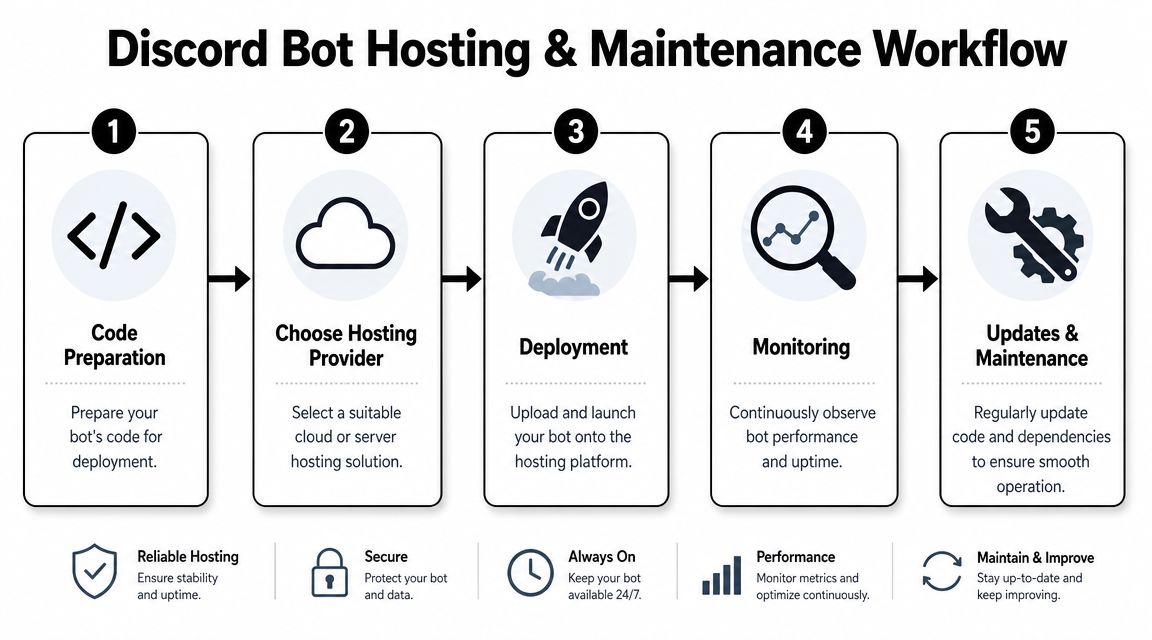
The hosting choice should match the team's appetite for operations.
A local machine is acceptable for a quick proof of concept. It is not acceptable for real support. Once users depend on the bot, uptime matters because unanswered support flows look like neglect, not just downtime.
A practical way to compare options:
For teams weighing those trade-offs, this guide on Discord bot hosting options is a helpful operational reference.
Most setup failures happen after the bot successfully authenticates. The two recurring problems are token handling and Gateway Intents.
Discord.py's documentation warns that the bot token is not the client secret and that a leaked token should be regenerated immediately. Regenerating revokes the old token and forces the app to log in again with the new one. The same documentation and related examples also emphasize storing the token in an environment variable such as .env, plus configuring Gateway Intents so the client receives the event categories it needs. Without the right intents, the bot may log in but fail to receive the events needed for commands or moderation work, as covered in the discord.py documentation.
Before launching a support bot, teams should verify the parts that usually get skipped.
Launch check: If the bot can authenticate but can't see the events its workflow depends on, it isn't ready for support traffic.
Hosting isn't the glamorous part of bot setup. It's the part that determines whether the bot remains a tool or becomes an outage.
A support bot becomes valuable when it fits the team's operating model.
That means the setup has to connect cleanly to moderation boundaries, staff ownership, escalation paths, and documentation. A bot that answers public questions but can't hand off private issues isn't a full support workflow. A bot that creates tickets but leaves no clear ownership trail doesn't reduce workload. It just moves it.
The strongest setups share a few traits. They use narrow permissions, clear channel boundaries, and a workflow the team can explain in plain language. Users know where to ask. Staff know what the bot handles automatically. Sensitive cases move out of public chat without confusion. That's the difference between a Discord add-on and a support system.
For teams mapping this into a broader support operation, this enterprise workflow automation guide is a useful companion read because it frames automation as an operational design problem rather than a tooling problem.
A final pre-launch routine helps:
Teams that reach the point where support volume, documentation sync, and multi-channel handoff are all active concerns usually stop needing “a bot” and start needing a managed support system. That's when infrastructure work starts taking attention away from the community itself.
The official setup path begins in the Developer Portal, not in the Discord client. That's the correct mental model from the start. A bot is an application integration with its own permissions and authentication flow, not a separate user account that logs in like a person.
Discord's official quick start says the process starts by creating an application in the Developer Portal, then adding a Bot user and generating a token for API authentication. For installation into a server, the required scopes are applications.commands and bot, followed by choosing the needed permissions before authorizing the bot into a server, as shown in Discord's developer quick start.
Use this sequence when the goal is to set up a Discord bot correctly the first time:
applications.commands and bot scopes.The installation step matters because every bot install requires a server selection and approval flow. That's not friction for its own sake. It's how Discord enforces controlled app access.
A visual walkthrough can help if the team wants to see the portal flow before building around it.
The token is the bot's credential. Anyone who gets it can act as that bot until the token is rotated. That's why it should be treated like a secret from the moment it's generated.
Keep it out of screenshots, shared notes, and source files. If there's any doubt that it was exposed, regenerate it and update the deployment environment before continuing.
If the team wants a support-focused option instead of building and hosting everything itself, Mava can be used to set up Discord ticketing and AI responses around an existing knowledge base while keeping community support workflows in one place.
.png)
.png)
.png)
